

A mobile app design tool makes it easier to turn an app idea into a working design without writing complex code. You have an app idea. You don’t have a developer. And you don’t want to wait six months to see your idea on a phone.
But with so many no-code platforms available in 2026, choosing the right option can be difficult.
A beginner may need a simple visual editor, while a startup may look for prototypes, responsive screens, user flows, testing, and collaboration features in one platform.
In 2026, you don’t have to. The right mobile app design tool lets you drag, drop, and publish a real app without writing code.
The hard part is picking one. Some tools only design screens. Some build real iOS and Android apps. Also, some make web apps that look like phone apps.
This guide covers the top 10 no-code mobile app design tools for users in the US and worldwide in 2026.
It compares the tools based on ease of use, design features, prototyping, integrations, pricing, and the type of project each tool fits best.
If you are planning a startup app, testing a product idea, or designing your first mobile experience, these options can help you move from an idea to a clear, testable app design faster.
What Is the Best No-Code Mobile App Design Tool?
For most beginners, Adalo is the easiest way to design and publish a native mobile app without code. FlutterFlow is the best pick if you want more power and may add code later. Bravo Studio is best if you already design in Figma.
Here is the short list:
| SL | Tool | Best for | Output |
| 1 | FlutterFlow | Scalable native apps | Native iOS and Android (Flutter) |
| 2 | Adalo | Beginners and simple apps | Native iOS and Android |
| 3 | Bravo Studio | Designers who use Figma | Native iOS and Android |
| 4 | Figma | Designing and prototyping screens | Design files and prototypes |
| 5 | Glide | Apps from spreadsheets | App from your data |
| 6 | Thunkable | Cross-platform apps with logic blocks | iOS and Android |
| 7 | Softr | Client portals and web apps | Mobile-friendly web apps |
| 8 | SAP Build Apps | Business and enterprise teams | Enterprise apps |
| 9 | Draftbit | Visual builder with code export | React Native apps |
| 10 | GoodBarber | Simple, low-cost business apps | iOS, Android, and web |
What Is a No-Code Mobile App Design Tool?
A no-code mobile app design tool lets you build app screens and features with a visual editor. You drag buttons, lists, and forms onto a canvas. You don’t write code.
Most tools fall into three groups:
- Design tools help you plan and test how an app looks. Figma is the best-known example.
- App builders turn your design into a working app. Adalo and FlutterFlow do this.
- Data-to-app tools turn a spreadsheet or database into an app. Glide is one.
One more thing to know. Some tools make native apps. These are built for the iPhone or Android system. They run smoothly and can use the camera, GPS, and push alerts. Other tools make web apps that run in a browser. Both are useful. But they are not the same.
How We Picked These Tools
We looked at what matters to real builders:
- Ease of use: Can a beginner start in one afternoon?
- Design control: Can you make the app look like your brand?
- Publishing: Can you send it to the App Store and Google Play?
- Backend and data: Can it store users, content, and payments?
- Room to grow: Will it still work when you have thousands of users?
- Honest limits: Where does each tool get stuck?
Some of these tools are really low-code. They need no code to start, but you add it later. We flag that where it applies.
1. FlutterFlow: Best for Scalable Native Apps
FlutterFlow is a visual builder that creates real Flutter apps. That means you get true native builds, not a website in a phone wrapper. You can also export the Flutter code if you outgrow the platform.
Why it stands out
- Builds native iOS and Android apps from one project
- Let’s export the underlying code
- Connects to popular backends and APIs
- Good fit for startups building a real product
Watch out for
- Steeper learning curve than Adalo
- Often called low-code, since advanced logic may need custom code
Best for: Founders and product teams who want power now and room to grow later.
2. Adalo: Best for Beginners
Adalo is one of the easiest ways to design a native app without code. You drag components onto a screen, link them to a built-in database, and publish to the app stores.
Why it stands out
- Friendly drag-and-drop editor
- Publishes native iOS and Android apps
- Built-in database and user accounts
- AI-assisted layout help
Watch out for
- Best for simple to mid-size apps
- Complex logic and heavy data can feel limited
Best for: Non-technical founders, small businesses, and fast MVPs.
3. Bravo Studio: Best for Figma Designers
Bravo Studio turns your Figma designs into native iOS and Android apps. You design in Figma. Bravo adds the data and logic. Then you publish.
Why it stands out
- Your app looks exactly like your design
- Connects to outside APIs for real data
- Bravo Vision lets you preview on a real phone
- Great for designers who want full control
Watch out for
- You need to know Figma well
- You set up your own backend or data source
Best for: Designers and design-led startups.
4. Figma: Best for Designing and Prototyping Screens
Figma is the most popular tool for designing app screens. It is not an app builder by itself. But it is where many great apps begin.
Use it to sketch screens, build clickable prototypes, and share them with your team or clients. Then pair it with a tool like Bravo Studio when you’re ready to build.
Why it stands out
- Strong design and prototyping features
- Real-time teamwork in the browser
- Huge library of templates and community kits
Watch out for
- Doesn’t publish a working app on its own
- Beginners may find the many options a lot at first
Best for: Planning your UI and UX before you build.
5. Glide: Best for Apps Built From Spreadsheets
Glide turns your data into an app. Point it at a spreadsheet or database, and it builds screens around that data. It’s quick, clean, and easy to learn.
Why it stands out
- Very fast setup
- Structured layouts that look tidy by default
- Great for internal tools and simple MVPs
Watch out for
- Less freedom over layout than a canvas-style builder
- Plans scale in price as your users and rows grow
Best for: Team tools, directories, trackers, and quick prototypes.
6. Thunkable: Best for Cross-Platform Apps With Logic Blocks
Thunkable lets you design screens by drag and drop. You add logic with visual blocks instead of code. It builds for both iOS and Android.
Why it stands out
- Block-based logic is easy to follow
- Live testing on your own phone
- Popular with students and first-time builders
Watch out for
- Block logic can get messy in big apps
- Design polish takes extra effort
Best for: Learners, classrooms, and small custom apps.
7. Softr: Best for Client Portals and Web Apps
Softr builds apps on top of your existing data, like Airtable or Google Sheets. It’s best known for portals, directories, and internal tools. Apps work well on phones, but they are web apps rather than native ones.
Why it stands out
- Clean templates and fast setup
- Handles logins and user roles
- Strong for business workflows
Watch out for
- Not a native app builder
- Limited for apps that need deep phone features
Best for: Portals, member areas, and internal business apps.
8. SAP Build Apps: Best for Business and Enterprise Teams
SAP Build Apps (the platform that grew from AppGyver) is built for companies, especially those already using SAP. It offers deeper logic than most consumer-friendly tools.
Why it stands out
- Strong logic and data options
- Fits enterprise rules and security needs
- Good for internal business apps
Watch out for
- More complex than beginner tools
- Best value when you already use SAP
Best for: Enterprise teams and technical builders.
9. Draftbit: Best for Visual Building With Code Export
Draftbit is a visual builder for React Native apps. You design on a canvas, and you can export clean code. That makes it handy if you plan to hire a mobile developer later.
Why it stands out
- Visual editor with real code underneath
- Code export avoids lock-in
- Works well with custom APIs
Watch out for
- Less beginner-friendly than Adalo or Glide
- Smaller community than the biggest platforms
Best for: Teams who want a visual start and a developer-friendly finish.
10. GoodBarber: Best for Simple, Low-Cost Business Apps
GoodBarber is a long-running app maker aimed at small businesses, shops, and publishers. It uses ready-made layouts and built-in features, so setup is straightforward.
Why it stands out
- Simple, template-based setup
- Cost-friendly for small projects
- Built-in features like push alerts and content tools
Watch out for
- Less flexible for unusual app ideas
- Fewer custom logic options
Best for: Local businesses, creators, and publishers.
No-Code vs. Traditional App Design
No-code and traditional app design take different approaches. A mobile app design tool can help users create screens and prototypes with visual controls, while traditional design often works with developers and coding tools.
| Factor | No-Code App Design | Traditional App Design |
| Coding skills | Little or no coding needed | Coding knowledge may be needed |
| Design process | Uses drag-and-drop editors and visual elements | Uses professional design and development tools |
| Speed | Faster for prototypes and simple apps | Usually takes more time |
| Cost | Often lower for small projects | Can cost more due to design and development work |
| Customization | Depends on the platform | High level of customization |
| Prototyping | Quick to create and test ideas | Can require more design and development steps |
| Best for | Beginners, startups, small teams, and MVPs | Complex apps and large products |
| Technical control | Limited by platform features | Greater control over the final product |
| Updates | Often simple through the platform | May require design or development changes |
| Scalability | Suitable for many simple to medium projects | Better for complex and highly customized products |
Which should you choose?
Choose a no-code mobile app design tool if you want to create and test an app idea quickly without technical skills. Traditional app design is a better fit when your project needs advanced features, deep customization, or greater technical control.
Common Mistakes When Choosing an App Design Tool
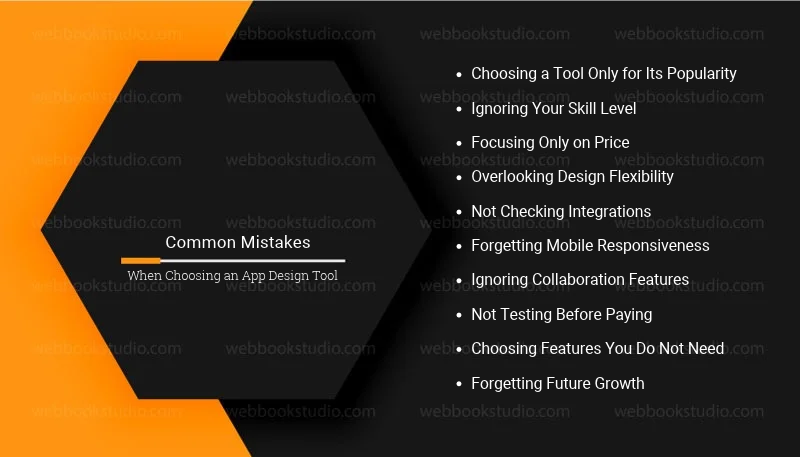
Choosing the right mobile app design tool is not only about the number of features. The wrong choice can increase costs, slow down your project, or make future changes harder. Avoid these common mistakes:
1. Choosing a Tool Only for Its Popularity
A popular platform may not match your project needs. Check its design features, integrations, export options, and learning curve before choosing it.
2. Ignoring Your Skill Level
Some tools are built for beginners, while others require design or technical experience. Pick a platform that matches your current skills and allows you to learn as your project grows.
3. Focusing Only on Price
A free plan may have limits on projects, storage, exports, or collaboration. Check the full pricing structure before starting your app design.
4. Overlooking Design Flexibility
Some no-code platforms offer ready-made templates but limit customization. Make sure you can change layouts, colors, fonts, navigation, and other UI elements as needed.
5. Not Checking Integrations
Your app may need tools for payments, databases, analytics, forms, or automation. Check whether the platform supports the integrations your project requires.
6. Forgetting Mobile Responsiveness
A design should work well across different screen sizes. Test how the tool handles mobile layouts before committing to it.
7. Ignoring Collaboration Features
If you work with designers, developers, clients, or marketers, look for features such as shared projects, comments, version history, and team access.
8. Not Testing Before Paying
Use a free plan or trial when available. Build a small sample screen first. This helps you understand the editor and find limitations before making a long-term commitment.
9. Choosing Features You Do Not Need
More features do not always mean a better tool. Focus on the functions that support your current app idea instead of paying for features you may never use.
10. Forgetting Future Growth
Your needs may change as the app grows. Consider whether the tool can support larger projects, more users, new integrations, and design updates in the future.
How to Choose the Right Mobile App Design Tool
Start with one question: What are you building?
- A simple app, fast: Choose Adalo or GoodBarber.
- A product you want to scale: Choose FlutterFlow.
- A pixel-perfect design: Design in Figma, then build with Bravo Studio.
- An app from existing data: Choose Glide or Softr.
- A work app inside a big company: Choose SAP Build Apps.
- A visual start with a code exit: Choose Draftbit or FlutterFlow.
Get the best mobile app development agency that provide сustom IOS app development services with iOS app development, Android app development, Cross-platform app development, eCommerce app development, etc.
Quick checklist before you commit
- Do you need a native app?
If you need push alerts, camera access, or a store listing, pick a native builder.
- Where will your data live?
Check how each tool stores and connects data.
- Can you export your work?
Code export lowers your risk if you outgrow the tool.
- What will it really cost?
Prices and limits change often. Always check the tool’s pricing page and look at user and record limits, not just the starting price.
- Can you test it for free?
Try a free plan or trial and build one real screen first.
What About AI App Builders?
In 2026, many tools add AI. Some suggest layouts. Others build an app from a text prompt. This is a real time-saver for first drafts.
The broader no-code and low-code development platform market sits at approx. $65 billion in 2026, according to Gartner figures, with pure no-code platforms representing a substantial share of that total.
Still, be careful. Many prompt-based builders focus on web apps rather than native mobile apps. And a fast first draft still needs your review for design, data, and security. Treat AI as a helpful starter, not a replacement for planning.
Final Thoughts: Which No-Code Mobile App Design Tool Should You Choose in 2026?
You’ll see 10 top picks, what each does best, and where each falls short. There’s no single best mobile app design tool for everyone. The best one matches your goal, your skills, and your budget.
If you want the fastest path to a simple native app, start with Adalo. And if you want power and room to grow, try FlutterFlow. If design is your strength, pair Figma with Bravo Studio.
Pick one, sign up for the free plan, and build a single screen today. You’ll learn more in one hour of building than in a week of comparing.
Note pls: Pricing, features, and plan limits change often. Verify details on each tool’s official website before you buy.
Relevant article: How to use Figma for cross-platform mobile app design?
FAQs: Which No-Code App Design Tools Are Best for Building MVPs?
1. What is the best mobile app design tool for beginners?
Adalo is a strong first choice. Its editor is simple, and it can publish native iOS and Android apps. Glide is also easy if your app is based on a spreadsheet.
2. Can I really build a mobile app without coding?
Yes. Tools like Adalo, Glide, Thunkable, and Bravo Studio let you build working apps with visual editors. Complex apps may still hit limits, and some platforms work best with a little code.
3. Is Figma a no-code app builder?
No. Figma is a design and prototyping tool. It makes clickable mockups, not published apps. You can pair it with a builder like Bravo Studio to turn designs into real apps.
4. What is the difference between no-code and low-code?
No-code means you build with visual tools only. Low-code is mostly visual, but lets you add code for harder tasks. FlutterFlow and Draftbit are often called low-code.
5. Can no-code apps go on the App Store and Google Play?
Yes, if the tool builds native apps or provides a publishing path. Adalo, FlutterFlow, and Bravo Studio support store publishing. Always confirm the current process on the tool’s website, since store rules change.
6. How much does a no-code mobile app design tool cost?
Most offer a free plan or trial. Paid plans vary widely, and limits on users, data, and publishing often matter more than the sticker price. Check each tool’s current pricing page before you decide.
7. Can a no-code app handle thousands of users?
Some can, but performance depends on the tool, your data setup, and how complex your app is. If you expect fast growth, pick a tool with strong backend options and code export, like FlutterFlow.