

What Are the Most Common WordPress Bugs and How Can You Repair Them?
WordPress Bug Fixing Service is often the fastest way to fix a website that suddenly stops working. A small problem like a plugin conflict, theme issue, PHP error, or database problem can quickly turn into a white screen, login failure, broken pages, or a slow website. These bugs can affect your visitors, search rankings, and sales if they are not fixed correctly.
Most WordPress bugs have a clear cause and a proven solution. Professional WordPress developers do not guess. They check error logs, WP core files, the database, plugins, themes, server settings, and backups to identify the root cause. They also test every fix carefully to protect your data, improve website performance, and keep your site secure.
In this guide, you will learn about the 15 most common WordPress bugs, why they happen, and how professionals fix them safely. If you manage a personal blog, business website, or online store, these practical solutions will help you understand when you can handle a problem yourself and when it is time to use a trusted WordPress bug-fixing service.
What Is a WordPress Bug Fixing Service? 15 Problems Every Website Owner Should Know
WordPress (WP) is a powerful platform, but no website is free from technical problems. In 2026, WordPress powers over 811 million websites globally. Its market share runs about 43% of all websites, and content systems control nearly 63% of the Content Management System (CMS) market.
That’s millions of sites, from small business blogs to large e-commerce stores, relying on it every single day. But with great popularity comes great responsibility, and unfortunately, a lot of headaches. Bugs, errors, and unexpected breakdowns are part of the territory.
Most WordPress bugs happen because different parts of your website must work together. If one part changes or fails, your website may stop working as expected.
Here are the most common causes of WordPress bugs.
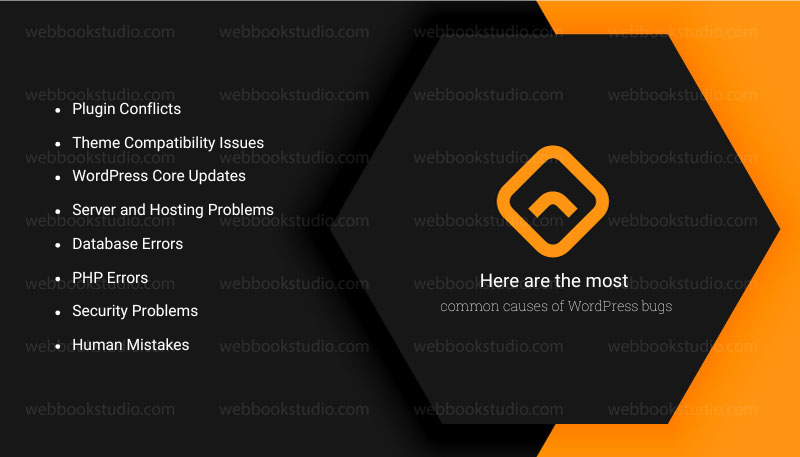
1. Plugin Conflicts
Plugins add new features to your website. Sometimes two plugins try to do the same job or are not built to work together. This can cause errors, broken pages, login problems, or even make your website unavailable.
2. Theme Compatibility Issues
Your WordPress theme controls how your website looks and works. An outdated or poorly coded theme may not support the latest version of WordPress or your plugins. This can lead to layout problems, missing features, or unexpected errors.
3. WordPress Core Updates
WordPress regularly releases updates to improve security, performance, and features. If your theme or plugins are not compatible with the latest version, problems may appear after an update. Keeping everything updated together helps reduce this risk.
4. Server and Hosting Problems
Your hosting server plays an important role in website performance. Low server resources, incorrect file permissions, outdated PHP versions, or server configuration issues can cause slow loading, internal server errors, or database connection failures.
5. Database Errors
WordPress stores your posts, pages, settings, and user information in a MySQL database. If the database becomes damaged, overloaded, or disconnected, your website may display error messages or fail to load correctly.
6. PHP Errors
WordPress runs on PHP. An outdated PHP version, coding errors, or a memory limit exceeded can trigger fatal errors, blank pages, or broken website functionality. Updating PHP and fixing code issues often resolves these problems.
7. Security Problems
Hackers, malware, and brute force attacks can damage WordPress files or change website settings. Security issues may cause redirects, warning messages, slow performance, or blocked access. Regular security scans and strong website protection help prevent these problems.
8. Human Mistakes
Simple mistakes can also break a website. Deleting important files, changing the wrong settings, installing unsupported plugins, or editing code without testing can all lead to WordPress errors.
How Professionals Find the Real Problem: First Point of View?
Professional WordPress developers do not guess when a website breaks. They start by creating a full backup to protect your data. Then they review error logs, enable WordPress debug mode when needed, inspect plugins and themes, check the database, review server settings, and test changes in a safe environment. This step-by-step process quickly identifies the root cause and helps fix the issue without creating new problems.
Understanding what causes WordPress bugs makes it easier to prevent them. We’ll look at the 15 most common WordPress bugs and explain how professionals diagnose and safely fix each one.
15 Common WordPress Bugs and How Professionals Fix Them
Here are 15 frequent issues professionals encounter, why they happen, and how experts resolve them efficiently. Each includes real-world logic and examples.
1. White Screen of Death (WSOD)
The White Screen of Death (WSOD) is one of the most common and frustrating WordPress bugs. Instead of loading your website, WordPress displays a completely blank white page. Sometimes the problem affects the entire website, while other times it only appears in the WP admin dashboard or on specific pages.
This error usually happens because WordPress encounters a critical problem and stops running to protect the website from further damage. Although the blank screen looks serious, the issue can often be fixed once the root cause is found.
Why it happens: A fatal PHP error stops WordPress from generating any output. Common triggers include plugin/theme conflicts, exhausted memory limits, or syntax errors after updates.
Professional fix: Enable debugging (WP_DEBUG in wp-config.php), check error logs, disable plugins via FTP or staging, increase PHP memory limit, or switch to a default theme like Twenty Twenty-Six. Experts use controlled rollbacks and test compatibility matrices.
Example: After a plugin update, an e-commerce store’s checkout page went blank. The service identified a conflict with the payment gateway plugin and an outdated WooCommerce version fixed in under an hour with zero data loss.
Quick Tip: A White Screen of Death is usually a symptom, not the actual problem. The fastest and safest solution is to identify the underlying cause instead of applying temporary fixes. This approach prevents the error from returning and keeps your WordPress website stable in the long run.
2. Internal Server Error (500)
A 500 Internal Server Error is one of the most confusing WordPress bugs because it does not clearly explain what went wrong. Instead of showing the exact problem, the server returns a generic error message and stops loading the page.
This can affect your entire website or only certain pages, making it difficult to identify the cause without proper troubleshooting.
Although the error looks serious, it is usually caused by a problem with your website files, server configuration, plugins, or PHP settings, not by WordPress itself.
- Why it happens: Server-side issues like .htaccess corruption, PHP fatal errors, or resource limits.
- Professional fix: Rename .htaccess, increase memory limits, check server error logs, or reinstall core files selectively. Pros often replicate the environment locally first.
- Reason: These errors are vague by design for security, so systematic isolation (plugins, theme, core) is key.
Quick Tip: A 500 Internal Server Error is a general server response, not the actual problem. Finding the root cause, whether it is a plugin conflict, .htaccess issue, PHP error, or server configuration, is the key to fixing it permanently.
3. Error Establishing a Database Connection
The “Error Establishing a Database Connection” message means your WP website cannot communicate with its database. Since the database stores your posts, pages, users, settings, and WooCommerce data, your website cannot load without it.
This error may look alarming, but it does not always mean your data is lost. In many cases, the problem is caused by incorrect database settings, a server issue, or a damaged database that can be repaired safely.
- Why it happens: Wrong credentials in wp-config.php, corrupted database tables, or hosting server issues. Traffic spikes or maintenance can exacerbate it.
- Professional fix: Verify credentials, repair the database via phpMyAdmin or WP-CLI, optimize tables, or restore from backup. Experts add query caching and monitoring.
- Real reason: Databases grow bloated with revisions and spam comments. Regular optimization prevents recurrence.
Quick Tip: The database is the heart of your WordPress website. Regular backups, reliable hosting, and proper maintenance greatly reduce the risk of database connection errors and make recovery much faster if a problem occurs.
4. 404 Page Not Found Errors on Posts and Pages
A 404 Page Not Found error happens when WordPress cannot find the post or page a visitor is trying to access. This usually does not mean the content has been deleted. In many cases, the page still exists, but something is preventing WP from finding it.
Common causes include incorrect permalink settings, a changed URL, a corrupted .htaccess file, broken internal links, plugin conflicts, or problems after a website migration or update.
These errors can frustrate visitors, increase bounce rates, and make it harder for search engines to crawl your website. If important pages continue returning 404 errors, your SEO performance and user experience may suffer.
A professional WordPress Bug Fixing Service identifies the root cause by checking permalink settings, reviewing URL structures, repairing the .htaccess file, fixing broken links, and creating 301 redirects when pages have been moved.
- Why it happens: Permalink structure issues after migration or updates.
- Professional fix: Reset permalinks in Settings > Permalinks, flush rewrite rules, or correct .htaccess. For complex cases, Pros audit custom post types and taxonomies.
Once the issue is resolved, they test the affected posts and pages to ensure visitors and search engines can access the correct content without interruption. Regular website maintenance and monitoring can also help prevent 404 errors from returning in the future.
5. Plugin Conflicts
If the problem started immediately after installing a new plugin or theme, you may be able to fix it by disabling the recent change.
However, if the cause is a PHP error, server configuration issue, corrupted files, or multiple conflicts, trying random fixes can make the problem worse or even take your website offline.
A professional WordPress developer’s bug-fixing service can identify the root cause quickly, restore your website safely, and reduce downtime while protecting your data and SEO performance.
- Why it happens: Two or more plugins hook into the same actions/filters incompatibly, especially after core or PHP updates.
- Professional fix: Systematic deactivation testing in a staging site, code review for deprecated functions, or custom patches. Many services maintain compatibility databases.
- Example: A form builder and caching plugin clashed, breaking submissions. The fix involved updating one and adding a compatibility snippet.
Quick Tip: More plugins do not always mean a better website. A smaller collection of well-maintained, compatible plugins is usually faster, safer, and easier to manage than dozens of unnecessary ones.
6. Theme Compatibility Issues
Your WordPress theme controls your website’s design, layout, and many front-end features. When a theme is outdated, poorly coded, or incompatible with the latest version of WordPress, plugins, or PHP, it can cause serious problems.
Some issues only affect the appearance of your website, while others can prevent important features from working correctly.
A theme compatibility issue is not always caused by itself. In many cases, it happens after a WordPress update, plugin update, or server upgrade that changes how the theme functions.
- Why it happens: Themes are not updated for new WordPress block editor features or Full Site Editing.
- Professional fix: Switch to the parent theme temporarily, update child themes, or use custom CSS/JS overrides. Experts refactor code for modern standards.
Quick Tip: A visually attractive theme is not enough. A well-maintained, regularly updated, and standards-compliant theme is far less likely to cause compatibility issues and will help keep your WordPress website secure, fast, and reliable.
7. Slow Site Performance and High Load Times
A slow WordPress website can frustrate visitors and drive them away before they even see your content. It can also reduce conversions, increase bounce rates, and hurt your search engine rankings.
Website speed problems usually develop over time as more plugins, images, and content are added without proper optimization.
A single issue rarely causes slow performance. A professional WordPress Bug Fixing Service checks every part of your website to identify the real bottlenecks and improve loading speed without breaking functionality.
- Why it happens: Unoptimized images, too many plugins, poor hosting, a bloated database, and a lack of caching.
- Professional fix: Image compression, CDN integration, database cleanup, opcode caching, and query optimization. Tools like Query Monitor help pinpoint bottlenecks.
- Reason: Google prioritizes speed, and every second of delay costs conversions.
Quick Tip: A slow website is rarely caused by just one problem. The best results come from improving your hosting, database, plugins, images, caching, and website code together. This creates a faster website, a better user experience, and stronger SEO performance.
8. WordPress Not Sending Emails
WordPress sends emails for important actions such as password resets, contact form submissions, order confirmations, and user notifications. If these emails are not delivered, you may miss customer inquiries, lose sales, or prevent users from accessing their accounts. In many cases, the emails are sent but end up in the spam folder instead of the inbox.
- Why it happens: SMTP issues, hosting restrictions on PHP mail(), or plugin conflicts.
- Professional fix: Configure reliable SMTP via plugins like WP Mail SMTP with SendGrid or Amazon SES, test thoroughly, and monitor delivery.
9. Memory Exhausted Error
WordPress uses PHP memory to run plugins, themes, and core functions. When your website needs more memory than your server allows, you may see a “Fatal Error: Allowed Memory Size Exhausted” message. This error can prevent pages from loading, stop plugins from working, or even make your WordPress dashboard inaccessible.
- Why it happens: The default PHP memory limit is too low for resource-heavy sites.
- Professional fix: Increase via wp-config.php or php.ini, optimize plugins, and use object caching (Redis/Memcached).
10. Failed Updates or Stuck in Maintenance Mode
Your website is stuck on the “Briefly unavailable for scheduled maintenance” message. Keeping WordPress updated is important for security, performance, and new features.
However, updates do not always go as planned. A failed update can leave your website stuck in maintenance mode, display error messages, break website features, or even make your site inaccessible.
- Why it happens: Interrupted updates due to timeouts or permissions.
- Professional fix: Manually delete the .maintenance file, restore files from backup, or use WP-CLI for atomic updates.
11. Security Vulnerabilities and Hacks (Malware, Redirects)
Malware is harmful code that hackers place on a website without permission. A malware infection can damage your WordPress files, steal sensitive information, redirect visitors to unsafe websites, or even block access to your site. If left untreated, malware can harm your reputation, reduce search engine rankings, and cause visitors to lose trust in your business.
- Why it happens: Outdated components (91% plugin-related). Brute force, injection attacks.
- Professional fix: Malware scanning and removal, hardening file permissions, security plugins like Wordfence or Sucuri, two-factor authentication, and regular audits. Pros often implement web application firewalls (WAF).
- Unique 2026 angle: With AI-powered attacks rising, proactive services use automated scanning tied to vulnerability databases.
12. Broken Links and Images
Broken images appear when WordPress cannot find or display image files correctly. Instead of showing a photo or graphic, visitors may see an empty box, a broken image icon, or missing content. This problem can make your website look unprofessional and reduce user trust.
- Why it happens: URL changes during migration, media upload issues, or CDN misconfigurations.
- Professional fix: Database search-replace tools (carefully), image regeneration plugins, and link checkers.
You can improve website speed by compressing images, removing unused plugins, and enabling caching. These simple steps often make a noticeable difference.
13. REST API Errors
Server error logs and WordPress debug logs can reveal small issues before they become major problems. Reviewing these logs regularly helps identify plugin conflicts, PHP errors, and server configuration issues early.
- Why it happens: Plugin interference or server config blocking the API, critical for Gutenberg and headless setups.
- Professional fix: Debug with health checks, adjust .htaccess, or update conflicting modules.
Quick Tip: Never ignore WordPress updates because they often include important security patches and bug fixes. The safest approach is to test updates first, create a backup, and apply them carefully to reduce the risk of compatibility issues.
14. Login Page Issues (White Screen or Redirect Loops)
Login problems prevent you from accessing your WordPress admin dashboard. You may enter the correct username and password, but still be unable to sign in. In some cases, the login page keeps refreshing, redirects back to itself, or displays an error message. Without dashboard access, you cannot manage your website or publish new content.
- Why it happens: Cookie conflicts, security plugin settings, or session problems.
- Professional fix: Clear cookies, disable security plugins temporarily, check wp-config salts, or repair user tables.
Quick Tip: If you suddenly cannot log in after installing a plugin or updating WordPress, avoid repeatedly trying random fixes. Finding the root cause first helps restore access faster and reduces the risk of damaging your website.
15. Compatibility with New PHP Versions
WordPress runs on PHP and depends on your hosting server. If your website uses an outdated PHP version or incorrect server settings, you may see messages like Internal Server Error, White Screen of Death, or other fatal errors. Professionals review server logs, adjust PHP settings, and make sure your hosting environment meets WordPress requirements.
- Why it happens: Hosting upgrades PHP (e.g., to 8.3+), breaking older code using deprecated functions.
- Professional fix: Code auditing with tools like PHP Compatibility checker, gradual updates, and testing in isolated environments.
Quick Tip: More plugins do not always mean a better website. A smaller collection of well-maintained, compatible plugins is usually faster, safer, and easier to manage than dozens of unnecessary ones.
When Do You Need a WordPress Bug Fixing Service?
A good WordPress bug-fixing service doesn’t stop at one-off repairs. They implement:
- Regular backups (daily automated, off-site storage).
- Staging environments for safe testing.
- Performance and security monitoring dashboards.
- Version control (Git) for changes.
- Documentation of custom fixes.
Reason: Prevention beats cure. A $200–500 monthly maintenance plan often saves thousands in lost revenue and emergency fixes.
Common User Problems and Practical Solutions
| Problem | Solution |
| “My site was fine yesterday, and now it’s broken after an update.” | Never update everything at once in production. Use staging, backup first, and hire experts for complex stacks. |
| “I’m not technical, and fixing this myself wastes days.” | Professional services provide peace of mind with SLAs (e.g., 4-hour response for critical issues). |
| Cost concerns. | Compare to downtime costs. A hacked site can mean weeks of recovery and lost trust. |
WordPress remains an incredibly powerful platform, but its open nature demands vigilance. If you’re dealing with a sudden crash or planning long-term stability, investing in a professional WordPress bug-fixing service is one of the highest-ROI decisions you can make for your online presence in 2026 and beyond. Don’t wait for the next outage. Proactive care keeps your site secure, fast, and profitable.
How to Prevent Common WordPress Bugs?
The best way to fix a WP bug is to prevent it from happening in the first place. While no website is completely free from technical issues, regular maintenance and good security practices can greatly reduce the risk of crashes, errors, and downtime.
Most WordPress bugs develop because websites are not updated, monitored, or maintained regularly. By following a few simple habits, you can keep your website secure, stable, and running smoothly.
WordPress Error Fixing Prevention Checklist
| Best Practice WordPress Troubleshooting | Why WordPress Issue Resolution Matters |
| Keep WordPress Updated | Install the latest WordPress core updates to receive security patches, bug fixes, and performance improvements. |
| Update Plugins and Themes Regularly | Outdated plugins and themes are one of the biggest causes of compatibility issues and security vulnerabilities. |
| Create Automatic Backups | Regular backups allow you to restore your website quickly if something goes wrong. Store backups in a secure off-site location whenever possible. |
| Use Trusted Plugins and Themes | Download software only from reputable developers. Avoid nulled or pirated plugins and themes because they often contain malware. |
| Remove Unused Plugins and Themes | Every unused plugin or theme increases maintenance work and may introduce security risks if left outdated. |
| Test Updates on a Staging Website | Try major updates in a staging environment before applying them to your live website. This helps you find compatibility issues early. |
| Monitor Website Performance | Check loading speed, uptime, and Core Web Vitals regularly to identify problems before visitors notice them. |
| Strengthen Website Security | Use strong passwords, enable two-factor authentication (2FA), limit administrator accounts, and perform regular malware scans. |
| Optimize the Database | Remove unnecessary data such as spam comments, expired transients, and old revisions to improve website performance. |
| Check for Broken Links | Review your website regularly to fix broken links and maintain a better user experience and SEO performance. |
| Use Reliable WordPress Hosting | Quality hosting provides better security, faster performance, automatic backups, and a stable server environment. |
| Schedule Regular Website Maintenance | Routine maintenance helps identify small issues before they become major WordPress troubleshooting. |
How to Address WordPress Issues & Build A Simple Maintenance Routine?
You do not need to spend hours maintaining your website. A simple schedule can prevent many common problems.
- Every Week
- Check for WordPress, plugin, and theme updates.
- Create or verify website backups.
- Test important pages, forms, and login access.
- Review website speed and uptime.
- Every Month
- Remove unused plugins and themes.
- Optimize the database.
- Scan the website for malware.
- Check for broken links and fix any errors.
- Review user accounts and remove inactive administrators if necessary.
- Every Few Months
- Test your backup by restoring it to a staging website.
- Review hosting performance and PHP version.
- Audit plugin performance and remove unnecessary tools.
- Check SSL configuration and website security settings.
Why Does Preventive Maintenance Save Time and Money?
Many website owners only look for help after their website crashes or stops working. By that point, the problem may already be affecting visitors, search rankings, or online sales.
Regular maintenance helps you:
- Reduce unexpected website downtime.
- Prevent plugin and theme conflicts.
- Improve website speed and performance.
- Protect customer and business data.
- Maintain search engine rankings.
- Catch small issues before they become expensive repairs.
For business websites and WooCommerce stores, preventive maintenance is often far less costly than recovering from a major website failure or security breach.
Key Takeaway: WordPress Bug Fixing Service Matters.
Most WordPress bugs are preventable. Keeping WordPress updated, using trusted plugins and themes, creating regular backups, monitoring website performance, and following a consistent maintenance routine will greatly reduce the risk of future problems. If your website supports your business, investing in ongoing maintenance or a reliable Custom wordPress plugin development company can help keep it secure, stable, and available when your customers need it.
When Should You Hire a WordPress Bug Fixing Service?
Not every WordPress problem requires professional help. If a simple plugin update causes a minor issue, you may be able to fix it yourself. However, some bugs can affect your website’s security, search rankings, customer experience, or online sales.
In these situations, trying random solutions may increase downtime or create even bigger problems.
Knowing when to hire a WordPress bug-fixing service can save you time, protect your data, and get your website back online faster.
8 Signs You Need a Professional WordPress Bug Fixing Solution
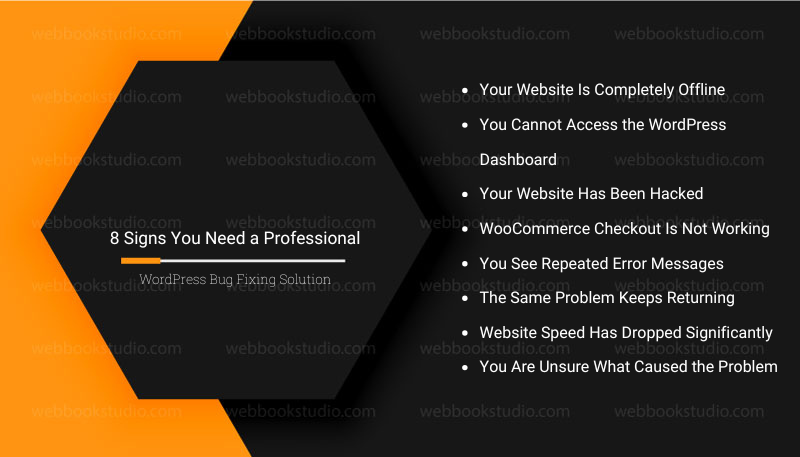
You should consider hiring a professional if you experience any of the following:
- Your Website Is Completely Offline
If visitors cannot access your website or you see a blank screen instead of your homepage, the problem may involve server errors, corrupted files, or database issues that require expert troubleshooting.
- You Cannot Access the WordPress Dashboard
Losing access to the admin area makes it difficult to update content, manage users, or fix the problem yourself. A professional can safely restore access without damaging your website.
- Your Website Has Been Hacked
If your website redirects visitors, displays spam content, or shows browser security warnings, malware may be present. A complete cleanup includes removing malicious code, repairing damaged files, and closing the security gap that allowed the attack.
- WooCommerce Checkout Is Not Working
Every failed checkout can mean lost revenue. If customers cannot place orders, complete payments, or receive confirmation emails, the issue should be fixed as quickly as possible.
- You See Repeated Error Messages
Errors such as:
- White Screen of Death
- 500 Internal Server Error
- Error Establishing a Database Connection
- PHP Fatal Errors
Often requires structured troubleshooting to identify the real cause.
- The Same Problem Keeps Returning
If you keep applying temporary fixes but the bug comes back, the root cause has probably not been resolved. Professionals focus on long-term solutions instead of quick fixes.
- Website Speed Has Dropped Significantly
A slow website affects both visitors and search engine rankings. If optimization plugins have not solved the problem, the issue may involve the server, database, or website code.
- You Are Unsure What Caused the Problem
Sometimes the safest decision is to stop troubleshooting before making the situation worse. Professional diagnosis often resolves the issue faster than trial-and-error debugging.
Conclusion: How Do Professionals Repair Common WordPress Bugs?
A WordPress website can experience many different types of bugs, from simple plugin conflicts to serious database errors, malware infections, and WooCommerce checkout failures. While some issues are easy to fix, others require a careful troubleshooting process to avoid data loss, security risks, or extended downtime.
Understanding the 15 most common WordPress bugs helps you recognize problems early and take the right action before they affect your visitors, search rankings, or business. Regular updates, reliable backups, strong security practices, and routine maintenance can prevent many of these issues before they start.
If your website is offline, displaying repeated errors, running slowly, or showing signs of a security breach, a professional WordPress Bug Fixing Service can diagnose the root cause, repair the issue safely, and improve your website’s long-term stability. Investing in expert support not only restores your website faster but also helps keep it secure, reliable, and ready to grow with your business.
Most relevant article: How companies that build ecommerce websites ensure security and compliance?
FAQs About WordPress Bug Fixing Service
- What is the average cost of a WordPress bug-fixing service?
Plans range from $50–$300+/month depending on site size and needs. One-time emergency fixes often cost $150–$800.
- How quickly can professionals fix most bugs?
Simple conflicts for WordPress repair service under an hour. Complex security or database issues: same day or next business day with proper access.
- Is it better to fix bugs myself or hire a service?
For non-technical owners or high-traffic sites, hiring saves time and reduces risk. DIY suits those who enjoy learning but have backups ready.
- Can a bug-fixing service help with site speed?
Absolutely. Performance tuning is often part of comprehensive packages.
- What should I look for in a provider?
Proven experience, transparent processes, client testimonials, clear SLAs, and a focus on prevention, not just reaction.
- Will frequent fixes indicate my site is poorly built?
Not necessarily. WordPress evolves quickly. Even well-built sites need ongoing attention due to third-party updates.
- How does WordPress compare to other platforms in 2026?
It remains dominant for flexibility, but requires more maintenance than some closed platforms. That’s why specialized services thrive.
- Are there risks to hiring cheap fix services?
Yes, poor code can introduce new vulnerabilities. Choose reputable providers with a security focus.
- How often should I schedule maintenance?
Weekly updates for critical sites, monthly for simpler ones, plus continuous monitoring.
- Can bug-fixing services migrate my site safely?
Many do, including full audits during transfer.